Image editor
Fix the photo where you use it. Keep the original.
A horizon that leans, a banner that needs a wider crop, a face that shouldn't be online. Open the photo in the media library of CMS Orbit or Travel Orbit, fix it and save. Every page or trip that uses it shows the result.
The file you uploaded is kept, so you can change any edit later or put the original back.
Red cabins in Lofoten, cropped to 16:9 for a banner and straightened by 3 degrees in CMS Orbit.
- The original is kept
- Shapes for banners, cards and share images
- Straighten up to 45 degrees
- Save, or save as a copy
How it works
From the library to every page in four steps
Adjust
Brighter, warmer, sharper
Sliders for brightness, contrast, saturation, warmth, shadows, highlights and sharpening. The preview follows as you drag, and Compare shows the photo as it was.
- Each with its own Reset: and Reset all puts every slider back.
- Undo and Redo: step back and forth through your changes with ⌘Z and ⇧⌘Z, or Ctrl+Z and Ctrl+Y.
- Sharp enough? The size that will be saved shows under the picture, with a warning when it's too small for a full-width banner.
- Seven sliders, each with its own Reset
Before and after
Drag to compare
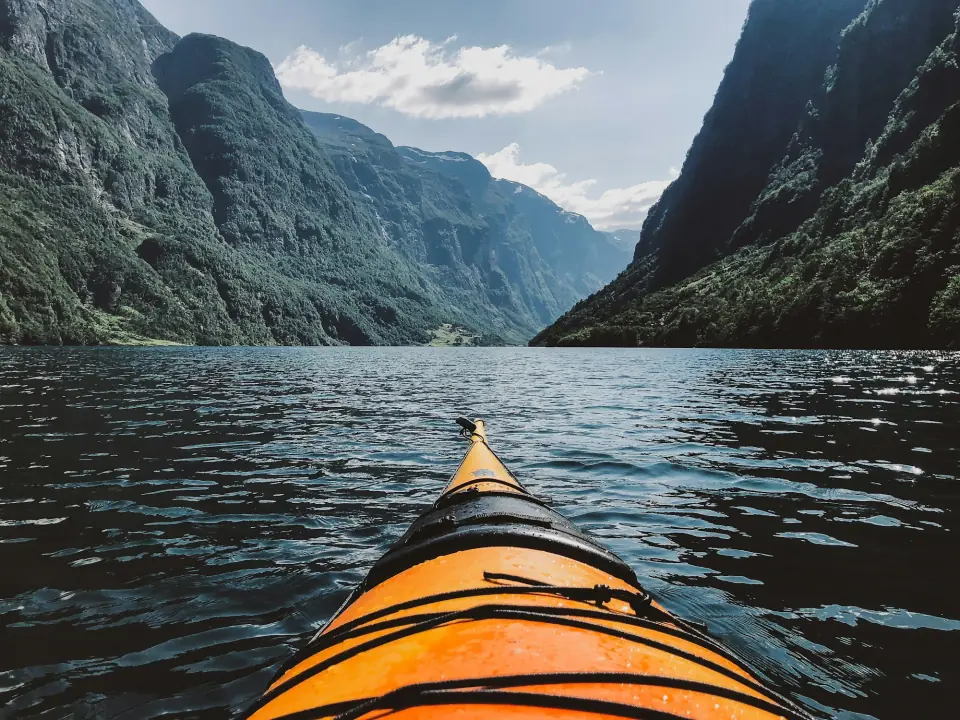
The kayak on the fjord from the screen above, as it was uploaded and with brightness, contrast, warmth and shadows raised. Compare in the editor does the same.
Looks
Six looks, each as strong as you like
Warm, Cool, Mono, Noir, Faded and Vivid, each with a strength slider. A small preview of your own photo shows how each look will turn out before you choose it.
- A preview of each look on your photo
Blur and pixelate
Hide a face or a number plate, everywhere it's published
Drag across the photo to cover a face, a number plate or other private details, and choose Blur or Pixelate for each area. Move an area by dragging it, or resize it by its corner. Without a mouse, add an area and move it with the arrow keys.
- Hidden everywhere: on your website and booking pages, in every size they ask for, through the delivery API and in cached copies, which are cleared when you save.
- The original stays private: its old address stops working, and only people who can edit media see it, in Compare and through Restore original.
- Gone for good, if you choose: an owner can remove the unblurred original altogether. The audit trail records who did it.
- Four faces, hidden
- Blur or Pixelate for each area
At a glance
Everything you need, nothing lost
45°
to level a horizon
Straighten by up to 45 degrees, and turn or flip in a click.
7
sliders, each with its own Reset
Brightness, contrast, saturation, warmth, shadows, highlights and sharpening.
6
looks, as strong as you like
Warm, Cool, Mono, Noir, Faded and Vivid, each with a strength slider.
1
original, always kept
Change any edit later, or restore the original in one step.
Nothing lost
Edits you can always take back
Where you'll find it
In CMS Orbit and Travel Orbit
Questions
About the image editor
Can we undo an edit after saving?
Yes. The file you uploaded is kept, so you can reopen the editor and change any edit, with the sliders, looks and blurred areas as you left them, or choose Restore original to take every edit off.
Is a blurred face really gone from our website?
Blurred areas hide their details everywhere the image is published, in every size, through the API and in cached copies, which are cleared when you save. The unblurred original is kept privately for people who can edit media, and an owner can remove it for good.
Can we add text or draw on a photo?
No. Drawing, text, stickers and frames aren't part of the editor. It crops, straightens, turns, flips, adjusts, adds a look and blurs or pixelates areas. In Travel Orbit, images added from a link can't be edited until you upload them.
Better photos, without another tool.
Upload your photos to CMS Orbit or Travel Orbit and edit them where your team already works. The trial is free for 14 days.